Product Matcher
Steps, Floor and Max
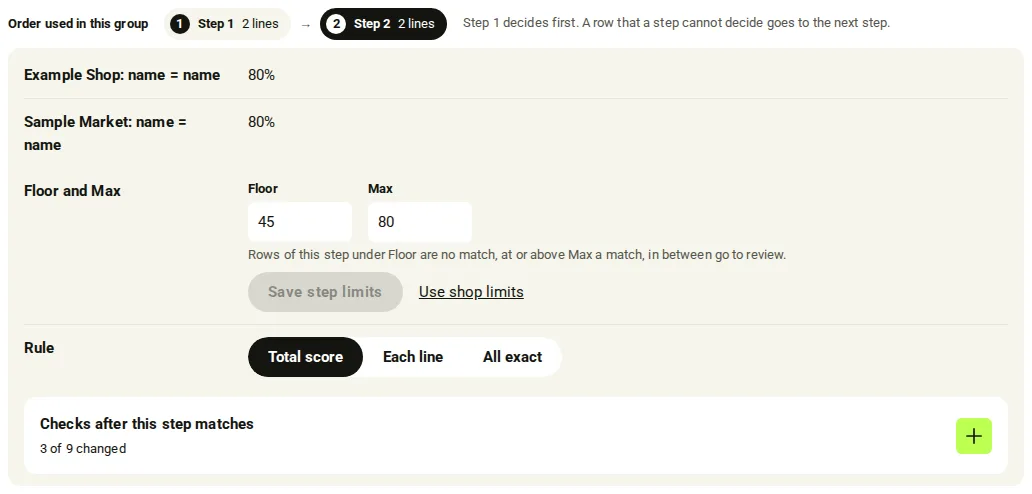
You decide the order in which your lines decide. Step 1 decides first. A row that a step cannot decide goes to the next step. Each step has its own limits: under Floor a row is no match, at or above Max it is a match, and in between it goes to review.
- Open your group, pick Matching, then Match the data. The banner says “You set the order of this group.”
- Each line shows a step badge, Step 1 to Step 5. Press Edit connections, then click the step number on a line to move it to the next step (after Step 5 it goes back to Step 1).
- Press Save config to keep the new order.
- The picture step, Pictures, always comes after every text step. You cannot put the photo line before a text line.
- The strip “Order used in this group” above the canvas shows your steps. Click a step to open it.
- In the open step, set Floor and Max under Floor and Max and press Save step limits. Until you do, the step uses the shop limits (“This step uses the shop Floor and Max until you set its own.”). Use shop limits goes back to them.
- Pick the step Rule: Total score (the lines of the step together), Each line (every line of the step must pass) or All exact (every line must be exactly the same).
- Open Checks after this step matches to change a check for this step only. Leave a field empty to keep the group value (Group value). A change applies from the next run.
- Step settings save on their own. You see “Saved. The matcher checks it within about a minute.” The step order is the only thing that needs Save config.
- Use a Full key for every change. A Read key can only read. Base address
https://portal.scrapewise.ai/api/scraper-api, headerAuthorization: Bearer <key>. - Set a line’s step in the match setup: each line in
masterData.matchersormasterData.matchersByScopetakesstepfrom 1 to 5. Save it withPUT /api/scraper/group/{id}/match(Full) and"draft": true, as in Set up a match. - With a Read key, read the engine setup and its
editVersion:GET /api/scraper/group/{id}/match/engine-setup. Addinclude=fieldsonce to see which fields you may change. - With a Full key, change step limits, rules and checks with
PATCH /api/scraper/group/{id}/match/engine-setup. SendeditVersionand a mergepatch, plus a newIdempotency-Keyheader. - With a Read key, read the engine setup again after about a minute.
status: ACTIVEwith a newconfigHashmeans your change is live.REJECTEDlistsproblems; the live setup is unchanged.
curl -X PATCH "https://portal.scrapewise.ai/api/scraper-api/api/scraper/group/[GROUP ID]/match/engine-setup" \
  -H "Authorization: Bearer $SCRAPEWISE_FULL_KEY" \
  -H "Idempotency-Key: [NEW UUID]" \
  -H "Content-Type: application/json" \
  -d '{
    "editVersion": [EDIT VERSION FROM YOUR LAST READ],
    "patch": {
      "stepIds": { "2": "s2" },
      "stepBands": { "s2": { "floor": 40, "max": 70 } },
      "stepRules": { "2": "total" },
      "stepPostGates": { "s2": { "textOnlyMin": 90, "priceCheck": true } }
    }
  }'
| Patch key | What it sets | Values |
|---|---|---|
stepBands.<step id> | Floor and Max of the step | { "floor": 0-100, "max": 0-100 }; null = use shop limits |
stepRules.<step number> | The step Rule | total, each-line, all-exact |
stepPostGates.<step id> | Checks after this step matches | see the table below; null = the group value |
stepIds.<step number> | The step’s id | s<number> unless your setup already has one |
| Check (portal) | Key | Values |
|---|---|---|
| Least text score | textOnlyMin | 0-100 (group: 95) |
| Gap to the next best | top2MinGap | 0-100 (group: 5) |
| Name checker | sidecar | stricter-wins (Can stop a match), off |
| Colour or print only differs | colourVariant | review, off |
| Code proof needed | codeProof | group-list (Group’s sources), all-sources, off |
| Guessed variant | variantGuess | alt2 (Any variant model), alt1 (Only several sizes) |
| Colour must match | colourMustMatch | true, false |
| Price check | priceCheck | true, false |
| Pick the variant in the family | familyRowPick | true, false |
- Connect your assistant with a Full key. A Read key can read the setup but change nothing.
- To move a line to another step, ask the assistant to read
scrapewise_get_matcher_job(Read), setstepon that line, and save withscrapewise_update_matcher_job(Full) anddraftset totrue. - To change limits, rules or checks, ask it to read
scrapewise_get_matcher_engine_setup(Read) for theeditVersion. - Then it calls
scrapewise_update_matcher_engine_setup_fields(Full) witheditVersionand apatch, the same keys as the API tab, plus a newidempotency_key. - Ask it to read
scrapewise_get_matcher_engine_setup(Read) again after about a minute and tell you thestatus.
scrapewise_update_matcher_engine_setup_fields
{
  "id": "[GROUP ID]",
  "idempotency_key": "[NEW UUID]",
  "body": {
    "editVersion": [EDIT VERSION],
    "patch": { "stepBands": { "s2": { "floor": 40, "max": 70 } } }
  }
}
Use scrapewise_update_matcher_engine_setup (Full) only to replace the whole engine setup or to restore an older version.
Errors you may see
FIELD_ADMIN_ONLY.editVersion.problems, fix them and save again. The live setup stays as it was.Questions
What does Before the steps mean in Results?
The row was decided by a check that runs before step 1, for example the same ID on both sides.
Why can I not change the step order?
Some groups show “Step order is fixed for this group.” Then the order is set by Scrapewise. You can still set limits and checks.
When do my changes take effect?
A step setting is checked by the matcher within about a minute, then the next run uses it. It never changes the results you have now.
What happens with a row between Floor and Max?
It goes to Review in Results, where you decide it. See Results and review.
Everything on this screen
Steps strip:
- Step 1 decides first. Click a step to see how it is set up. The strip lists the steps in the order they decide. Click one to open how it is set up.
- The Floor and Max boxes of a step: the two limits for the total score of that step.
Last updated 4 November 2026