Get started
Sign up
Make a free account and get your first data in about a minute. A new account starts with 5 free requests, and you do not need a card.
- Open
portal.scrapewise.aiand press Create a free account. The page says Create your free account and “5 free requests, no credit card required”. - Press Continue with Google, or type your Email and a Password of at least 6 characters, then press Create free account. By signing up you agree to the Terms and the Privacy Policy.
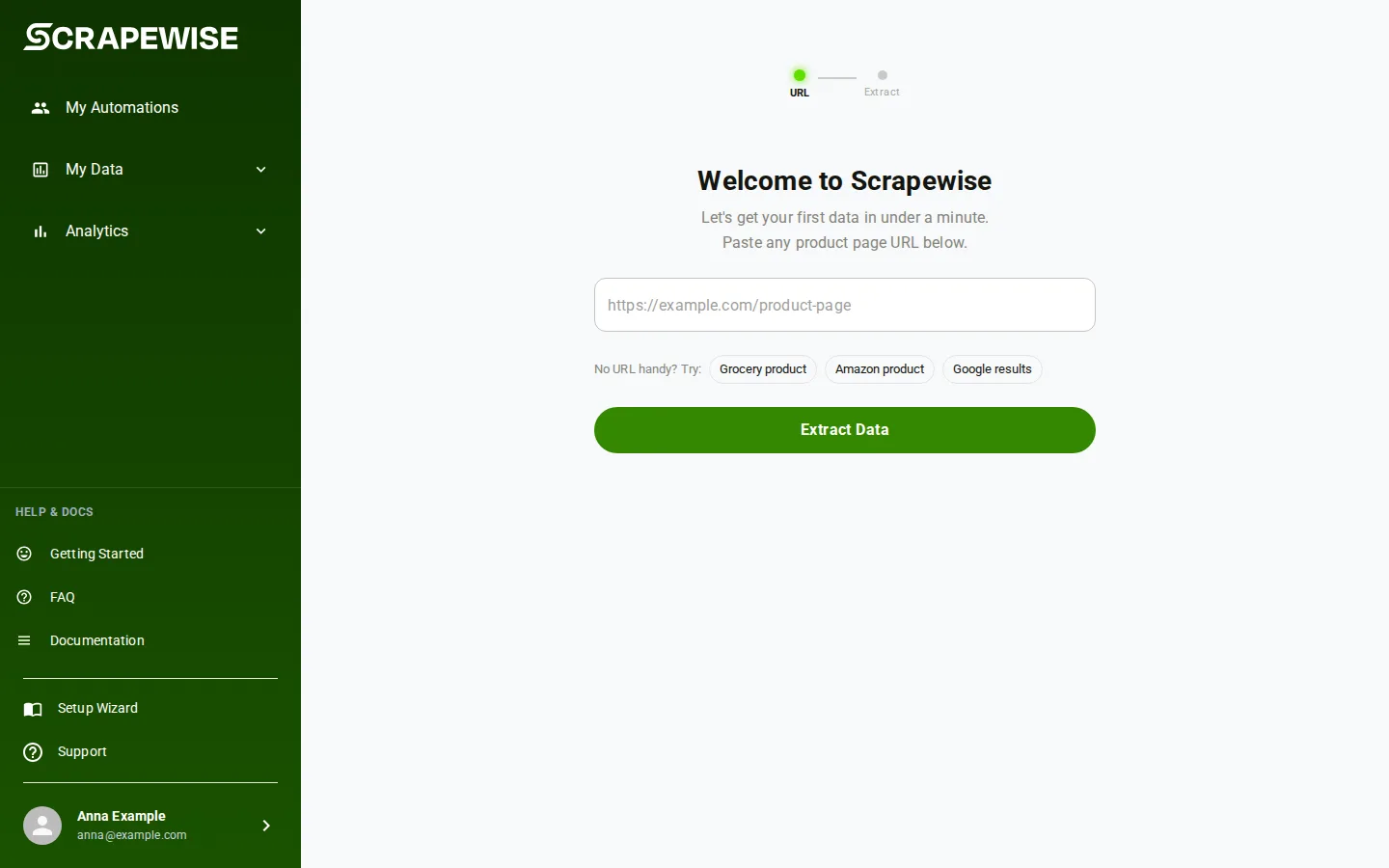
- Step 1 of the wizard opens: Welcome to Scrapewise. The bar at the top shows two steps, URL and Extract.
- Paste the address of one product page into the field, not a category page and not a home page. If you have none, press one of the examples after “No URL handy? Try:”: Grocery product, Amazon product or Google results. An example only fills the field.
- A small label at the left of the field shows which reader will handle the page: AI, Amazon or Google Search. You do not choose it.
- Press Extract Data. If the field is empty the page says “Please enter a URL”. If the address is wrong it says “Please enter a valid URL (include https://)”. The wizard also makes a group named after the site.
- Step 2 shows Automating data… and a short list: “Connecting to page…”, “Rendering content…”, “Detecting data fields…”, “Building automation config…” and “Fetching sample data…”. It takes under a minute for most sites. Press Cancel to go back to step 1.
- The page Data extracted! says “Here’s what we found. Does this look right?” and shows a table. Read the values, not only the column names. A price of
0, or a name that is a cookie banner, is wrong. - Choose one button. Save automation + save data saves the automation and starts a run, and the rows land in My Data. Looks Good - do not save data saves the automation without a run. Try Another URL goes back to step 1.
- If a column is wrong, open Not happy with the result?. It asks “What does this page show? Pick one and we will read it again.” Pick the best fit and the page is read again.
Note
To run the wizard again later, open your account menu and pick Setup Wizard.
- You make the account in the portal. There is no sign-up call and no call that makes a key (Read or Full). Do the portal tab first.
- Make a Read key or a Full key under your name at the bottom of the portal menu, then API Keys. See Read or Full. In the example below,
$SCRAPEWISE_KEYstands for your key, see API basics. - Check the key with a Read key or a Full key:
GET /api/key/whoami. - A good answer shows your
customerRef, thescope(LLM_READis a Read key,LLM_FULLis a Full key) and theprefix. A401means the key is wrong. - Read your 5 free requests with a Read key:
GET /api/wallet, fieldfreeRequestsRemaining. - Then follow Your first data in the API tab (a Full key builds, a Read key looks).
curl -H "Authorization: Bearer $SCRAPEWISE_KEY" \
  "https://portal.scrapewise.ai/api/scraper-api/api/key/whoami"
- Make the account in the portal tab, then make a Read key (or a Full key to let the assistant build) under your name at the bottom of the portal menu, then API Keys. See Read or Full.
- Connect your assistant with the Read key or Full key. See Connect your assistant (MCP).
- Ask it: “List my Scrapewise groups”. It calls
scrapewise_get_scraper_group_list(Read). The wizard (portal tab, step 6) made one group, so you see it if you finished the wizard. An empty list also proves the connection works. - Then follow Your first data in the MCP tab (the building steps need a Full key).
Errors you may see
Your account is created, but we could not finish setup.
The account exists. Press Try again on the same page. If it keeps failing, log in and open Setup Wizard.
The email is already registered
The page offers Log in or Reset password. Use one of them.
Too many failed attempts
Wait a few minutes and try again.
Extraction didn't work
The page may block automated visitors, or its content could not be read. Try a different product page of the same shop, or press Try Another URL. The screen links to “Pages that fail to deliver are not charged”, “Why some pages can’t be read” and Email support.
You do not have enough balance to start this run
The wizard stays open and offers a top-up. See Wallet and billing.
Questions
Do I need to confirm my email?
No confirmation email is sent today. You can use the account at once.
What do the 5 free requests cover?
The first 5 page requests. After that you top up the wallet. See Wallet and billing.
Will I be charged for a page that fails?
No. Only pages that are delivered are charged.
I already have an account. Where do I sign in?
On the login page press Sign In, or Sign in with Google. Forgot password? sends a reset.
Where did my first data go?
Open My Data in the left menu. The automation itself is under My Automations.
Everything on this screen
Log in page:
- Email and Password boxes: type the email and password of your account. Both are required. To log in with Google, use the Google button instead.
Forgot password page:
- Email box: type the email of your account and we send a reset link.
First read (the Setup Wizard):
- The web address box: paste the address of one product page, for example the one shown as a grey example. The wizard reads it and shows the data it found.
- Retry: tries the read again after it failed.
- Show templates for a specific industry: opens ready-made starting points for an industry. Hide closes the list again. A tile that says it is not available on your plan cannot be picked until you change plan. The line “This is what we used” names the choice the wizard made for you.
- Your balance is empty: this dialog shows when the wallet has no money. Top up balance opens the payment step. Not now closes it. Nothing is read and nothing is charged until you top up.
- Not enough balance for this run: shows when the wallet is too low for this read. Nothing was started and nothing was charged. The same two buttons are there.
Last updated 4 November 2026