Product Matcher
Set up a match
Matching finds the same product in your list and in each shop you compare with. You tell it which columns to compare by drawing lines, then you save the setup. Saving costs nothing and starts nothing.
Before you start, you need a group with at least two scrapers that have each finished one run: your own list and one shop.
- Open My Data in the left menu and open your group. Pick the Matching tab, then Match the data.
- The canvas shows one box marked Your list (your own products) and one box marked Compared for each shop. Every compared shop is matched with your list.
- Press Edit connections. Drag from a column on Your list to the column on a shop that holds the same thing, for example your
eanto theirgtin. Each line joins one of your columns with one shop column. - Draw the best line first: a barcode or a product code. Same code on both sides is proof. Then add text lines, for example your
titleto theirname. - Click a line to open its settings. Pick Exact (the values must be the same) or Fuzzy (the values must be alike), and set Total score threshold (0-100). Pick All shops to use the line for every shop, or Just this shop. Press Apply. Revert to default puts the line back to the group setting.
- A line on numbers, for example a price or a size, shows “Detected: numbers”. Set Max: to the difference you still accept. If the column is not really numbers, pick “Not numbers? Treat as text instead.”
- One line is the ID line (★). It names your product on a match. Mark it with Identity / output key in the line settings. The save bar shows “Identity:” and the column.
- To see one shop only, use Show: and pick Selected shop only, then click the shop box. All lines shows everything again.
- Press Save config. Until you save, the bar shows Unsaved changes, and Undo takes back your last change.
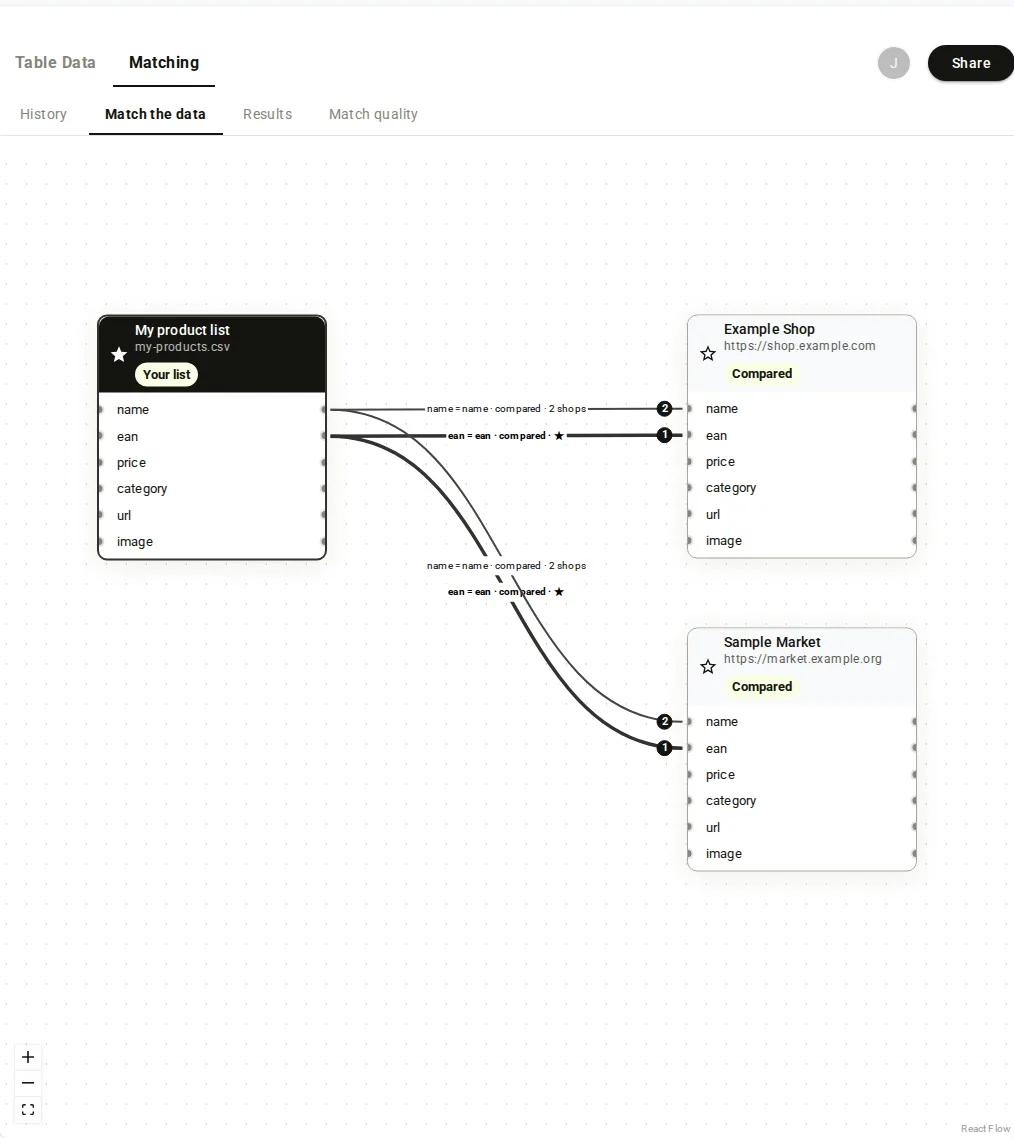
Next: put your lines in order in Steps, Floor and Max, then run the match.
- Make a Full key in the portal: your name at the bottom of the portal menu, then API Keys (see Read or Full). Reads also work with a Read key. Every call below uses the header
Authorization: Bearer <key>and the base addresshttps://portal.scrapewise.ai/api/scraper-api. - With a Read key, list the finished runs you can match:
GET /api/scraper/group/{id}/match/scope-jobs. You need one run of your list and one run per shop. - With a Read key, list the columns of your list:
GET /api/scraper/group/{id}/match/fields. - With a Read key, read the setup you have now:
GET /api/scraper/group/{id}/match. Keep itsversion; you send it back unchanged with your save. If the group has no setup yet, the read answers 404 and leaveversionout of the first save and send it from the second save on. - With a Full key, save with
PUT /api/scraper/group/{id}/matchand"draft": true. Send a newIdempotency-Keyheader for each new save. A draft save starts nothing and holds no money. - With a Read key, check that the change went live:
GET /api/scraper/group/{id}/match/setup.upToDate: falsemeans the change is still being applied, usually within a minute.
curl -X PUT "https://portal.scrapewise.ai/api/scraper-api/api/scraper/group/[GROUP ID]/match" \
  -H "Authorization: Bearer $SCRAPEWISE_FULL_KEY" \
  -H "Idempotency-Key: [NEW UUID]" \
  -H "Content-Type: application/json" \
  -d '{
    "masterData": {
      "jobId": "[RUN ID OF YOUR LIST]",
      "targetField": "sku",
      "matchers": [
        { "field": "ean", "kind": "exact", "threshold": 100, "step": 1 },
        { "field": "title", "kind": "fuzzy", "threshold": 80, "step": 2 }
      ],
      "matchersByScope": {
        "[RUN ID OF SHOP A]": [
          { "field": "title", "scopeField": "name", "kind": "fuzzy", "threshold": 75, "step": 2 }
        ]
      }
    },
    "scope": ["[RUN ID OF SHOP A]", "[RUN ID OF SHOP B]"],
    "version": "[VERSION FROM YOUR LAST READ]",
    "draft": true
  }'
| Field | What it does |
|---|---|
masterData.jobId | A finished run of your list. |
masterData.targetField | The ID line (★): the column that names your product on a match. |
masterData.matchers | Lines for every shop. field is your column; the shop column has the same name. |
masterData.matchersByScope | Lines for one shop, keyed by that shop’s run id. scopeField names the shop column when it differs. |
kind | exact, fuzzy or number. A number line takes numberTolerancePct. |
threshold | 0 to 100: how alike the two values must be. |
step | 1 to 5: the step the line decides in. See Steps, Floor and Max. |
scope | One finished run per shop. |
version | Copy it unchanged, as a string, from your last read or save. |
draft | true saves only. false saves and starts a run, see Run a match. |
A per-shop map you leave out keeps what is stored. An empty map {} clears it.
- Connect your assistant with a Full key (see Connect over MCP). A Read key can read the setup but cannot save it.
- Ask the assistant to read the runs it can match: tool
scrapewise_get_matcher_scope_jobs(Read). - Ask it to read the setup you have now: tool
scrapewise_get_matcher_job(Read). The canvas view of it:scrapewise_get_matcher_setup_view(Read). - Tell it (a Full key is needed to save) which columns to compare, for example “compare our ean with their gtin, then our title with their name”.
- Ask it to save with
scrapewise_update_matcher_job(Full) anddraftset totrue. It must copyversionfrom step 3 and send a newidempotency_key. - Ask it to read
scrapewise_get_matcher_setup_view(Read) again to check the change is live.
scrapewise_update_matcher_job
{
  "id": "[GROUP ID]",
  "idempotency_key": "[NEW UUID]",
  "body": {
    "masterData": { "jobId": "[RUN ID OF YOUR LIST]", "targetField": "sku", "matchers": [ { "field": "ean", "kind": "exact", "threshold": 100, "step": 1 } ] },
    "scope": ["[RUN ID OF SHOP A]"],
    "version": "[VERSION FROM scrapewise_get_matcher_job]",
    "draft": true
  }
}
Note
Ask your assistant to save with draft set to true. With draft set to false the same tool starts a paid run.
When a column is missing on one shop
A line whose column is missing on a shop is skipped for that shop. It never blocks the run. In Results that line shows (not scored) (a picture line with no photo score) or (not checked) (a picture line on a row that an exact barcode already decided).
A line whose column exists on no shop at all still blocks the run. The API answers 400 with “is not a valid column for the selected scope”.
Errors you may see
version (it is in currentVersion).Retry-After seconds and retry with the same idempotency key.Questions
Which line should I draw first?
A barcode or product code line, for example EAN or GTIN. A code that is the same on both sides is proof that it is the same product. Text lines catch the rest.
Does saving cost anything?
No. Save config (or draft: true) only stores the setup. Money is held only when you start a run.
Can one shop have its own lines?
Yes. In the line settings pick Just this shop. Over the API, put the lines in matchersByScope under that shop’s run id.
Can I add or remove the photo line myself?
Yes. Draw a line between two picture columns, or click a line and pick Mark as picture, and set its Total score threshold (0-100). Click the line and press Remove photo link to take it away. Photos are billed at the Pictures rate. You choose what the photo may do with Photo check, see Photo check.
Where are the settings for the whole group?
Open Rules for the whole group above the canvas. It holds the photo settings and the settings that are not lines.
Everything on this screen
Canvas:
- Reload: loads the canvas again after an error.
- Scrapewise manages the matching of this group. View only. shows when Scrapewise looks after the setup. Edit is for setups you manage yourself.
- Full screen and Exit full screen: make the canvas as large as the window.
- Reset layout puts the boxes back in their places. Layout not saved with retry shows when the positions could not be saved; they stay in this browser.
- Only connected rows: hide the columns that have no line.
- The line view buttons switch the canvas between the groups of lines.
- A step button on a line opens the step that line belongs to.
- Add lines: add more lines. A short list of columns without a line can be opened in full with a show all button.
- Column lists: press a column to draw from it. primary / make primary marks the main column. A column shows Built during matching or Not in the latest scrape when it comes from the run itself or is gone from the last scrape. Retry loads the columns again.
- Search sources or columns and Search sources or fields: find a shop or a column.
- Keep editing and Save anyway: the question when saving would change a result that already exists.
- Revert asks you to confirm before the line goes back to the group setting.
- Discard unsaved changes? and Discard & load: you have unsaved lines and open another setup. Discard drops them.
Line settings:
- Total score threshold (0–100): the lowest score at which two values count as the same. A 0 to 100 box.
- Just this shop and All shops: use the line for one shop or for every shop.
- Identity / output key ★: marks the line that names your product. Pick the identity / output key ★ asks for it when none is set, then Set ★ and run or Set ★ and save.
- Number lines: a slider and a box set the largest difference in percent you still accept.
- Not numbers? Treat as text instead. and Not a picture? Treat as text instead.: switch the line to text.
- These two columns are compared. shows which two columns the line joins.
- Field compatibility and ID column: the match settings window shows whether the two columns fit and which column is the ID.
Conflicting columns and strictness:
- The button that starts with Advanced and names match strictness opens Resolve conflicting columns, where you pick which column to keep when two share a name. Confirm & continue saves it.
- The identity question lists your columns as choices; pick the one that names the product.
- Matches without a proven code go to Review for: shows what happens to a match that has no code to prove it.
Last updated 4 November 2026