Product Matcher
Photo check
Text lines, for example name to name, give each pair a text score. The photo line compares the product pictures and gives a photo score. Photo check says what the photo may do with a match.
Your group needs a photo line first: the purple Product photo line between a picture column on your list and on the shop. You add it, set its threshold and remove it yourself, see “Add or remove the photo line” below. Photos are billed at the Pictures rate.
- Open your group, pick Matching, then Match the data. Check that the purple Product photo line is there.
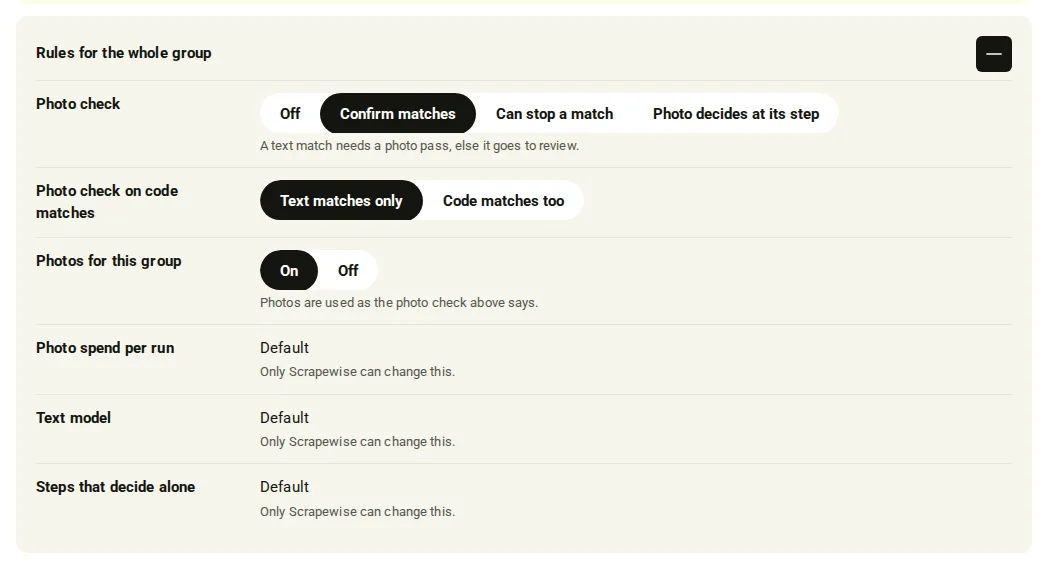
- Open Rules for the whole group above the canvas.
- Pick a Photo check:
- Off: photos are not compared.
- Confirm matches: a text match needs a photo pass, else it goes to review.
- Can stop a match: a clear photo mismatch moves a match to review.
- Photo decides at its step: rows the text left open get a photo score. At the picture step it decides with that line’s threshold.
- Pick Photo check on code matches: Text matches only (a match on a code is not checked by photo) or Code matches too.
- Photos for this group switches photos for the whole group: On uses photos as the photo check says, Off compares no photos at all.
- Photo spend per run shows the most the photo step may spend in one run (“Up to N USD” or Default).
- Each change saves on its own: “Saved. The matcher checks it within about a minute.” The next run uses it.
Add or remove the photo line
- Open your group, pick Matching, then Match the data, then Edit connections.
- Drag a line from the picture column on Your list to the picture column on a shop. A line between two picture columns can turn purple and show Product photo by itself.
- If it does not, click the line and pick Mark as picture. Type a Total score threshold (0-100), the photo score a pair needs. A threshold is required. Press Apply.
- To change the threshold or switch picture comparing on or off, click the purple Product photo line. Compare pictures for matched pairs switches it, Total score threshold (0-100) sets the number.
- To take the photo line away, click it and press Remove photo link.
- Press Save config. The next run uses the change.
- With a Read key, read the engine setup:
GET /api/scraper/group/{id}/match/engine-setup.raw.photoMode,raw.photoConfirmCodeMatchesandraw.photoRoundare the three settings. KeepeditVersion. - With a Full key, change them with
PATCH /api/scraper/group/{id}/match/engine-setup, a mergepatchand a newIdempotency-Keyheader. - With a Read key, read the engine setup again after about a minute.
status: ACTIVEmeans the change is live.
curl -X PATCH "https://portal.scrapewise.ai/api/scraper-api/api/scraper/group/[GROUP ID]/match/engine-setup" \
  -H "Authorization: Bearer $SCRAPEWISE_FULL_KEY" \
  -H "Idempotency-Key: [NEW UUID]" \
  -H "Content-Type: application/json" \
  -d '{ "editVersion": [EDIT VERSION], "patch": { "photoMode": "confirm", "photoConfirmCodeMatches": "text-matches-only", "photoRound": true } }'
| Portal | Key | Values |
|---|---|---|
| Photo check | photoMode | off, confirm (Confirm matches), veto (Can stop a match), score (Photo decides at its step) |
| Photo check on code matches | photoConfirmCodeMatches | text-matches-only, code-matches-too |
| Photos for this group | photoRound | true (On), false (Off) |
| Photo spend per run | photoMaxUsdPerRun | the most the photo step may spend in one run |
- Connect your assistant with a Full key. A Read key can read the photo settings but not change them.
- Ask it to read
scrapewise_get_matcher_engine_setup(Read) and tell youphotoMode,photoConfirmCodeMatchesandphotoRound. - Ask it to change one with
scrapewise_update_matcher_engine_setup_fields(Full), for example “set the photo check to Confirm matches”. It sendseditVersion, apatchwith the keys from the API tab and a newidempotency_key. - Ask it to read the engine setup again (a Read tool) after about a minute and confirm
statusisACTIVE.
scrapewise_update_matcher_engine_setup_fields
{
  "id": "[GROUP ID]",
  "idempotency_key": "[NEW UUID]",
  "body": { "editVersion": [EDIT VERSION], "patch": { "photoMode": "veto" } }
}
To add, change or remove the photo line over the API, save it with the other lines: PUT /api/scraper/group/{id}/match with a Full key, see Set up a match. imageMatchingEnabled switches picture comparing, and the photo line’s threshold is its threshold (0 to 100, required). Leave the photo line out to remove it.
The four photo checks
Photo matching is available to every customer and every group. Photo check has four modes. Photos are billed at the Pictures rate in every mode except Off.
Off
Photos are not compared. A match is decided by the text and code lines only. Pick it when your products have no useful pictures, or when you want the cheapest run. No pictures are billed.
Confirm matches
A match made by the text lines only stays a match when its photos agree. If the photos do not agree, or cannot be checked, the pair goes to Review. Pick it when a wrong match costs you more than a missed one, for example when similar products look alike by name.
Can stop a match
Your text matches stay matches. Only a clear photo mismatch moves a pair to Review. Pick it when the text is usually right and you only want the photo to catch obvious mistakes. This is the lighter check.
Photo decides at its step
Rows the text lines left open get a photo score at the picture step, and the photo line’s Total score threshold (0-100) decides them. Pick it when many products have poor names but good pictures. It finds the most extra matches, and it is the mode where the threshold matters most.
Everything on this screen
Photo settings:
- The photo line window sets the photo line of one pair of columns.
- The photo check choices: On or one of the four checks described above.
- Group value: the value the group uses when a shop has no own value.
What photos cost
When photos are compared, a run has a pictures line in its cost: EUR 1.50 per 1,000 pictures, counted per picture, no minimum. With Photo check Off or Photos for this group Off, there is no pictures line. See the cost estimate in Run a match.
Errors you may see
PHOTO_LINE_VALUE_MISSING.Questions
Which photo check should I pick?
Can stop a match keeps your text matches and moves only a clear photo mismatch to review. Confirm matches is stricter: every text match needs a photo pass. Photo decides at its step lets the photo decide the rows the text left open.
What are Mark as picture and Compare pictures for matched pairs?
They are settings of the photo line itself, in its line dialog. Mark as picture turns a line into the photo line, Compare pictures for matched pairs switches the picture compare on for it, and Remove photo link removes it. You can use all three yourself.
Where do I see the photo score?
In Results, open Technical matching fields. photoScore is the photo score, totalScore the total. Lines shows the photo line with its score.
What does (not scored) or (not checked) mean?
(not scored): the shop has no picture for this row, so the photo line was skipped. (not checked): an exact barcode already decided the row, so the picture was not checked.
Does a shop without pictures block the run?
No. The photo line is skipped for that shop and the run goes on.
Last updated 4 November 2026