Groups, rules and exports
Find emails
Give Scrapewise a list of business websites. It reads each website and returns one row per website with the email addresses the business publishes there. It reads the home page and up to two contact pages that the home page links to (contact, imprint, about). It uses plain pages only, so an address that appears only after a script runs is not found.
It returns every address the business publishes, including personal names, free-mail addresses and role addresses such as info@. It leaves out addresses of other firms credited on the page, such as the web agency, and placeholders such as name@example.com.
Find emails is not part of the 5 free requests. The account needs a topped-up balance.
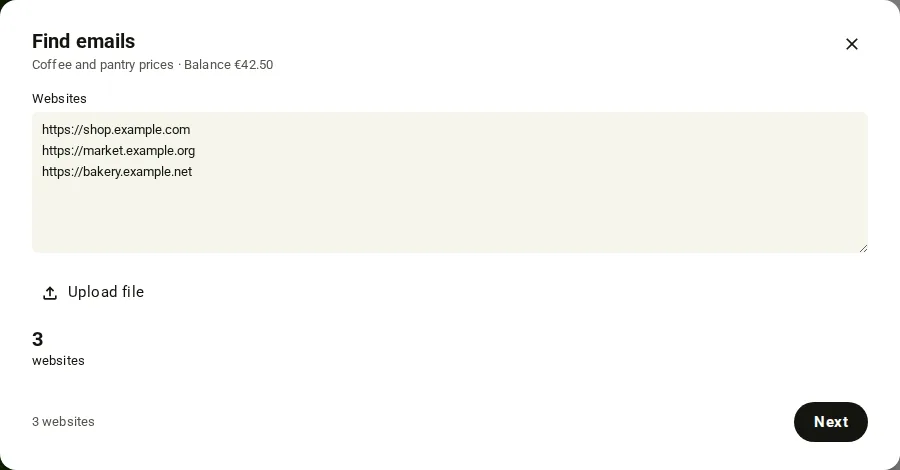
- Open your group in My Data. Press the … menu on the group and choose Find emails. The dialog shows the group name and your balance.
- Pick the input. From a scraper reads the website column of a scraper in the group, for example a Google Maps scraper. Choose the Scraper and the Website column. The dialog counts new websites, rows, empty cells, duplicates and addresses that are not valid.
- Or pick Paste or upload. Paste addresses into Websites, one per line, or press Upload file and choose a
.csv,.txt,.xlsxor.jsonlfile. - For a scraper source, you can tick “Add new websites from each run of this scraper to the list”. Each later run then reads only the new websites.
- Check the count at the bottom, for example “250 websites”, and press Next. The most is 100,000 websites. Over that the dialog says so.
- Read the cost. It says “up to” an amount. Open What is charged to see the price of one billed request and that one website takes at most 3 requests. Change the Name of the list if you want.
- If the balance is too low the button says Add funds. Otherwise press Find emails with the count in brackets. Press Back to change the list.
- The run starts and the rows arrive in the group while it goes. Filter them with the toggle All, Email, No email or Not read.
- If a run stops at a limit, open its row in the group history and press Continue. Only the websites not read yet are read.
Note
Each address must start with http:// or https:// and point at a public domain name. The dialog lists the first lines that are not valid. Duplicates are removed and never charged twice.
- Use a Full key. A Read key is refused with
403. Base addresshttps://portal.scrapewise.ai/api/scraper-api. - With a Full key, start the run with
POST /api/scraper/url-list-run. SendgroupId, aname(at most 200 characters),endpointTagset towebsitecontactsandurls(1 to 5,000 addresses). Always send the tag. It is never guessed from the addresses. This route needs noIdempotency-Key: the same name with the same list is never charged twice. - If you retry a failed call (still with a Full key), send the exact same
name. - The answer has
"tag": "websitecontacts", thescraperIdthe rows appear under andlinksQueued. - Follow the run with a Read key:
GET /api/scraper/load-history. - Read the rows with a Read key:
GET /api/scraper/data/group/{id}. Or download them as Excel from the portal orGET /api/scraper/data/group/{id}/download. - To add the new websites of a source scraper to an email list that already exists, use a Full key:
POST /api/scraper/{id}/website-contacts/add-from-source. Send{ "dryRun": true }first to count the new websites. Nothing is written. Send{ "dryRun": false }to add them and start a run that reads only the new ones. The answer hasnewLinks,linksTotalandjobQueued. - If a run stopped at a limit, continue it with a Full key:
GET /api/scraper/{id}/run?continueFromJobId=<the stopped run id>. The history row showsstoppedReason,stopMessage,continuableandresumeOn.
curl -X POST "https://portal.scrapewise.ai/api/scraper-api/api/scraper/url-list-run" \
  -H "Authorization: Bearer $SCRAPEWISE_FULL_KEY" \
  -H "Idempotency-Key: [NEW UUID]" \
  -H "Content-Type: application/json" \
  -d '{
    "groupId": "[GROUP ID]",
    "name": "Cafes Tallinn - website emails",
    "endpointTag": "websitecontacts",
    "urls": ["https://www.example.com/", "https://www.example.org/"]
  }'
import os, uuid, requests

r = requests.post(
    "https://portal.scrapewise.ai/api/scraper-api/api/scraper/url-list-run",
    headers={
        "Authorization": f"Bearer {os.environ['SCRAPEWISE_FULL_KEY']}",
        "Idempotency-Key": str(uuid.uuid4()),
    },
    json={
        "groupId": "[GROUP ID]",
        "name": "Cafes Tallinn - website emails",
        "endpointTag": "websitecontacts",
        "urls": ["https://www.example.com/", "https://www.example.org/"],
    },
)
print(r.json())
const r = await fetch("https://portal.scrapewise.ai/api/scraper-api/api/scraper/url-list-run", {
  method: "POST",
  headers: {
    Authorization: `Bearer ${process.env.SCRAPEWISE_FULL_KEY}`,
    "Idempotency-Key": crypto.randomUUID(),
    "Content-Type": "application/json",
  },
  body: JSON.stringify({
    groupId: "[GROUP ID]",
    name: "Cafes Tallinn - website emails",
    endpointTag: "websitecontacts",
    urls: ["https://www.example.com/", "https://www.example.org/"],
  }),
});
console.log(await r.json());
One row looks like this:
{
  "website": "https://www.example.com/",
  "email": "info@example.com",
  "emails_all": "info@example.com; booking@example.com",
  "email_source_url": "https://www.example.com/contact",
  "domain_match": "yes",
  "status": "EMAIL_FOUND",
  "checked_at": "2026-11-04T18:04:11Z"
}
email is the best address: one on the website’s own domain first, one from a contact page before one from the home page. emails_all lists every accepted address, best first, at most 100. domain_match is yes, no, unknown, or empty when no address was found.
Why 5,000 here and 100,000 in the portal: a JSON body takes at most 5,000 addresses. The portal sends the list as JSON Lines (Content-Type: application/x-ndjson), which takes up to 100,000. You can do the same: the first line is a header with groupId, name, endpointTag: "websitecontacts" and a clientRequestId, then one line {"url": "..."} per website. See Link lists. MCP has only the JSON form, so up to 5,000 per call.
- Connect your assistant with a Full key. A Read key cannot start the run. See Connect your assistant (MCP).
- Ask for the list to be read. The tool is
scrapewise_run_scraper_url_list(Full) withbodyholdinggroupId,name,endpointTagset towebsitecontactsandurls. - Ask it to follow the run with
scrapewise_get_scraper_load_history(Read). - Ask for the rows with
scrapewise_get_scraper_data_group_client(Read). - If a run stopped at a limit, ask it to continue with
scrapewise_run_scraper(Full) andcontinueFromJobId.
Statuses and price
The status of a row, and the label in the portal:
You pay per request that the provider billed, whatever the status: 1 credit, which is EUR 0.00015. A website takes 1 to 3 requests, so at most EUR 0.00045. A request that was not billed costs nothing. A social profile is not fetched and costs nothing. The dialog shows the most the list can cost before you start.
When a run stops at a limit
A run is limited to 23 hours counted from its first website, and a daily guard can stop it early. The run stops cleanly. Websites not read yet are not charged and stay in the list. Nothing continues by itself. History shows “List too long: a run is limited to 23 hours” or “Daily limit reached”, and you press Continue. The daily guard opens again at 00:00 UTC.
Errors you may see
Questions
Does it guess addresses?
No. Every address was read on a page of the business website. It never builds an address from a pattern such as info@ plus the domain.
Does it check that the mailbox exists?
No. The address is what the website shows. No test mail is sent.
Can I get a leads list from a Google Maps search?
Yes, in two runs. First search Google Maps, which gives a website column. Then send those websites here. Google Maps holds no email addresses itself.
How often does it find an address?
In one check of 20 small-business websites, 14 returned an address. Your list will differ.
May I use the addresses for cold email?
These are addresses a business publishes on its own public website. How you store and use them stays your responsibility under data protection law, and cold email has its own rules in each country. This is not legal advice.
Everything on this screen
Find emails dialog and menu:
- Export with emails: in the Export menu. It adds the found e-mail addresses to the export.
- Add new websites from each run of this scraper to the list: switch for a scraper source. Later runs then read only the new websites.
- The start button of the dialog is the Find emails button at the bottom. The file box behind Upload file accepts the file types listed in the steps.
Rows of a Find emails group:
- Continue at: a grey button on a row that stopped early. It shows when the search continues; you do not need to press it.
Last updated 4 November 2026