Account
Wallet and billing
Scrapewise is prepaid and pay as you go. You put money in your wallet and each job takes what it uses. There is no subscription, no monthly limit and no seat limit. Your balance is the only limit. The balance does not expire and unused balance is not refunded.
A new account starts with 5 free requests, no card needed. A page that fails to deliver is not charged, and the same address is not charged twice in one run. Scraped data is kept for 90 days.
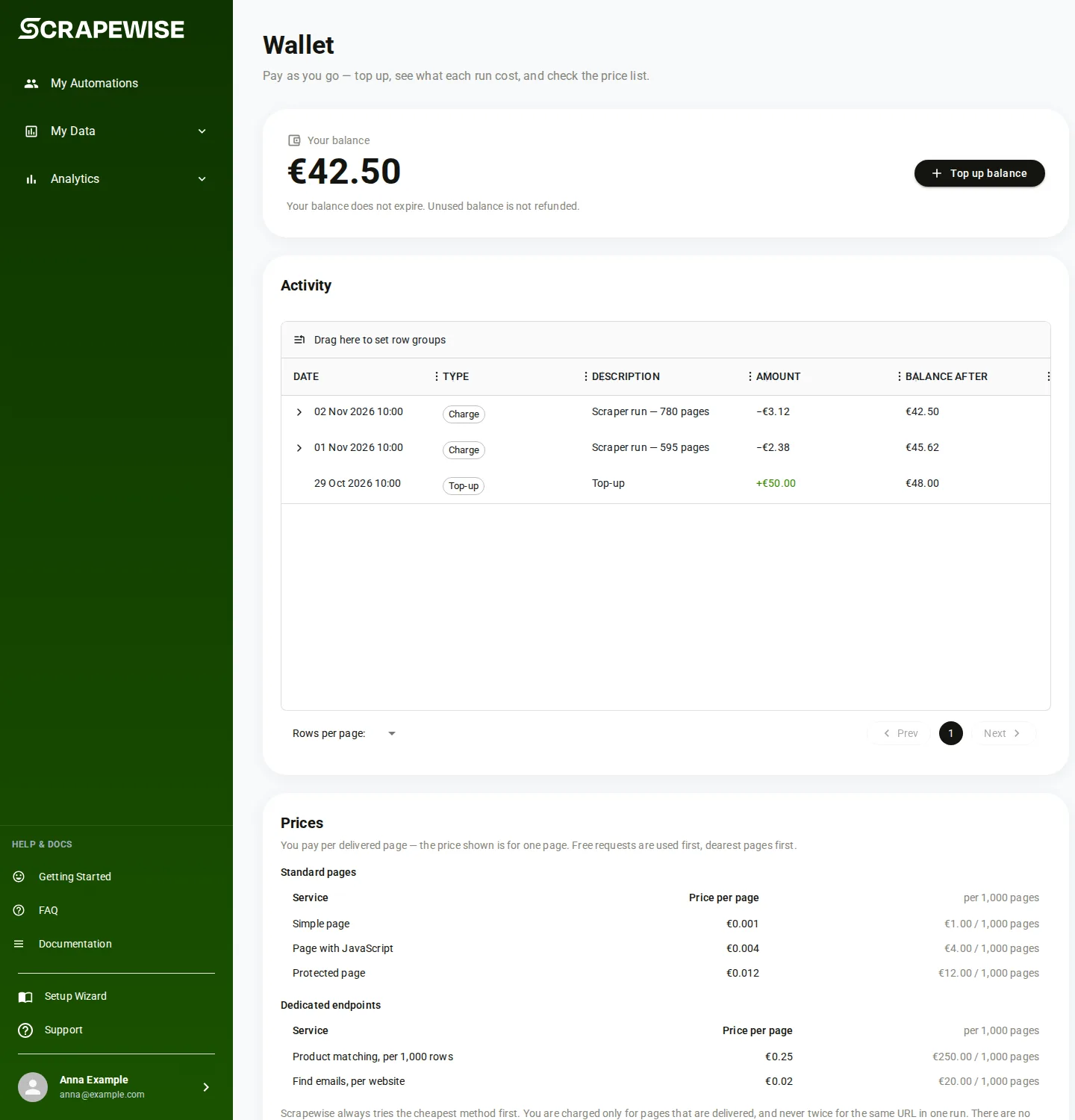
- Press your name at the bottom of the portal menu and pick Wallet. Your balance shows the money you can spend, in euro. A chip such as “5 free requests left” shows what is left of the free requests. It disappears at 0.
- To add money, press Top up balance. The window Top up your balance opens.
- Pick EUR 10, EUR 25 or EUR 50, or type an amount in Custom amount. The smallest top-up is EUR 5 and the biggest is EUR 1,000.
- Press Continue to payment. You go to the payment page of our card provider. The portal never sees your card.
- After you pay you come back to the wallet. The page says “Payment received, balance updating…” and then “Top-up applied”. The page checks the payment for about one minute. If it then says “Still processing”, refresh the page in a minute and look for a
TOPUProw in the ledger. If no row comes and the card was charged, write to support with the time of the payment, see Errors. “We could not find this payment” means no money moved: check the ledger. “We could not match it to your account” means the payment arrived but is not on your wallet yet: write to support. - Under Activity, read each charge and top-up. The columns are Date, Type, Description, Amount, Balance after and Status. Open a row to see its lines: Service, Pages, Unit price and Amount.
- Under Prices, read the price of one page for each service. The columns are Service and Price per page. Free requests are used first.
- If the page says “Could not load your wallet”, press Retry.
Note
The balance can show a small hold while a match run is going. The most a run can cost is held when it starts, and what the run does not use comes back. See Run a match.
- Use a Read key or a Full key. Base address
https://portal.scrapewise.ai/api/scraper-api, headerAuthorization: Bearer <key>. - Read the wallet with a Read key:
GET /api/wallet. The answer hasbalanceMicros,freeRequestsRemaining,lowBalanceandfreeGrantOnly. - Read the ledger with a Read key:
GET /api/wallet/transactions?page=0&size=20. Newest first.sizeis 1 to 100. - Read the prices with a Read key:
GET /api/wallet/prices. Each row has alabelandsellingPriceMicros. - Read the invoices of older accounts with a Read key:
GET /api/billing-history. Filters:page,size,status,from,to(dates asyyyy-MM-dd). - Topping up is not available over the API.
POST /api/wallet/topupandGET /api/wallet/topup/{sessionId}answer only to a signed-in portal session, not to a Read key or a Full key. Top up in the portal tab.
curl -H "Authorization: Bearer $SCRAPEWISE_KEY" \
  "https://portal.scrapewise.ai/api/scraper-api/api/wallet"
import os, requests

r = requests.get(
    "https://portal.scrapewise.ai/api/scraper-api/api/wallet",
    headers={"Authorization": f"Bearer {os.environ['SCRAPEWISE_KEY']}"},
)
print(r.json()["balanceMicros"] / 1_000_000, "EUR")
const r = await fetch("https://portal.scrapewise.ai/api/scraper-api/api/wallet", {
  headers: { Authorization: `Bearer ${process.env.SCRAPEWISE_KEY}` },
});
const wallet = await r.json();
console.log(wallet.balanceMicros / 1_000_000, "EUR");
{
  "balanceMicros": 1250000,
  "currency": "EUR",
  "freeRequestsRemaining": 3,
  "lowBalance": false,
  "lowBalanceThresholdMicros": 500000,
  "walletBillingEnabled": true,
  "freeGrantOnly": false
}
Amounts end in Micros: 1,000,000 is EUR 1. 150 is EUR 0.00015, the price of one plain page. freeGrantOnly is true while the account has never topped up (the example above is an account that has topped up, so it shows false). Some services, for example Find emails, are not part of the free requests.
Ledger rows have a type (TOPUP, CHARGE, ADJUSTMENT or FREE_GRANT), a status, amountMicros, balanceAfterMicros and lines that list the pages charged. Prices come as rows of rowKey, kind, label and sellingPriceMicros.
Note
Legacy plan routes such as GET /api/subscription, GET /api/subscription/prices and GET /api/plan-features still answer, but plans do not set what you pay. Only the price list above does.
- Connect your assistant with a Read key or a Full key. See Connect your assistant (MCP).
- There is no MCP tool for the wallet, the ledger or top-ups, for a Read key or a Full key. Money is a signed-in portal action. To see the balance, open Wallet in the portal.
- Before a match run, ask the assistant to read the cost:
scrapewise_get_matcher_run_estimate(Read). The answer shows the balance, the amount held and whether the run can start. - When a paid tool (Full key) answers with a 402, the assistant should stop and tell you the balance is too low. Retrying does not help. Top up in the portal, then repeat the same request.
A money stop reaches the assistant as a tool result with isError: true. The text starts with HTTP 402 and then the answer body shown below.
Prices
These are prices per page delivered. Per 1,000 pages: EUR 0.15, 0.75, 1.50, 3.75, 0.15 and 1.50. Scrapewise tries the cheapest method that works for a site. The live list is GET /api/wallet/prices.
Errors you may see
There are two money stops. They have different codes, so they are easy to tell apart.
{ "errors": [ { "code": "WALLET_INSUFFICIENT_BALANCE", "message": "..." } ] }. A run that stops half way for the same reason shows stopReason: "WALLET_INSUFFICIENT_BALANCE".reserveMicros (needed), availableMicros and missingMicros. Top up at least the missing amount and start the run again. Nothing was charged. See Run a match.Questions
What do the 5 free requests cover?
The first 5 page requests of a new account. They are used first, on the dearest pages first. Find emails is not covered by them. After they are used you need a top-up.
Do I pay for a page that fails?
No. Only delivered pages are charged. The same address is not charged twice inside one run.
Does my balance expire?
No. Unused balance is not refunded.
How much does a match run hold?
The most it can cost, shown before you press Run match. What the run does not use comes back to your balance.
I see Billing & Invoices, not Wallet. Why?
Older accounts that were on a monthly plan keep that page for their past invoices. Their new work is charged to the wallet in the same way.
Can my assistant top up for me?
No. A top-up is a payment and only you can do it, in the portal.
Everything on this screen
Low balance and top-up dialogs:
- Your balance is empty: shown when the wallet has nothing left. Nothing is started until you top up.
- Not enough balance for this run: shown when the wallet is too low for the run. Nothing was started and nothing was charged.
- Not now closes either dialog. Top up balance opens the top-up step.
- The three amount buttons in the top-up dialog fill in a ready amount. Or type your own in Custom amount.
Top up window:
- Top up your balance: The window to add money.
- The preset EUR 10.
- The preset EUR 25.
- The preset EUR 50.
- Custom amount: Type any amount from EUR 5 to EUR 1,000.
- Continue to payment: Goes to the card payment page.
- The preset EUR 10 on the wallet page.
- The preset EUR 25 on the wallet page.
- The preset EUR 50 on the wallet page.
- Cancel: Closes the top-up window without paying.
Billing history table (older accounts):
- Download: Downloads the invoice of that row.
- View: Opens the invoice of that row.
- Status: Filters the rows by the state of the invoice.
- Select Date: Filters the rows by a date.
- Clear Date: Removes the date filter.
- Rows per page:: How many rows each page shows.
Table toolbar (the same on every table):
- The search box above the table.
- Price Comparison: A switch shown only on tables that have prices to compare.
- Export CSV: Downloads the rows of the table as a CSV file.
- Export Excel: Downloads the rows of the table as an Excel file.
- Select Columns: The window to choose which columns show.
- Close: Closes the Select Columns window.
- Saved Charts: The window with the charts you saved from the table.
- close: The cross that closes Saved Charts.
- View: Opens a saved chart.
- Delete: Deletes a saved chart.
Wallet tabs, plans and cancel (older accounts that were on a monthly plan):
- Subscription: Shows your old plan and lets you cancel it.
- Plans: Shows the old plans. New accounts do not need a plan.
- Billing History: Lists your past invoices.
- Compare plans: Opens the Plans tab.
- Cancel subscription: Opens the cancel window.
- The cancel window. It asks you to confirm.
- Confirms the cancel. The button shows Cancelling while it works.
- Keep subscription: Closes the cancel window and keeps the plan.
- Opens or closes the list of what a plan includes.
- The button on a plan card. It says Current Plan for your plan, Upgrade or Downgrade for another, Reactivate Plan for an ended plan and Book a Call for the biggest plan.
- Confirm Downgrade: Confirms a move to a smaller plan. It starts at the end of the paid period.
- Cancel: Leaves the downgrade question without changing the plan.
- Cancel downgrade: Removes a downgrade you already asked for.
- The same plan card control on the public pricing page.
- The same plan button on the public pricing page.
- The same downgrade confirm on the pricing page.
- The same cancel on the pricing page.
- The same cancel downgrade on the pricing page.
Last updated 4 November 2026