Account
Settings and notifications
Your settings hold your profile, your notifications, your API keys and your wallet. This page covers the profile and the notifications. For the other two, see API keys and Wallet and billing.
- Press your name and email at the bottom of the left portal menu. Your settings open. The list on the left has My Profile, Notifications, API Keys and Wallet, and Log out at the bottom.
- In My Profile, read your Name, Email and Time zone. Editing them in the portal is not available yet; a press on the pencil says it is coming soon.
- Under Theme, pick Light or Dark. The choice is kept in this browser only.
- To change your password, press Change password. Type your Old password and your New password, then press Change password again. Press Close to leave without changing it.
- To delete your account, press Delete Account. The window Delete your account says this deletes the account for good. Type the word
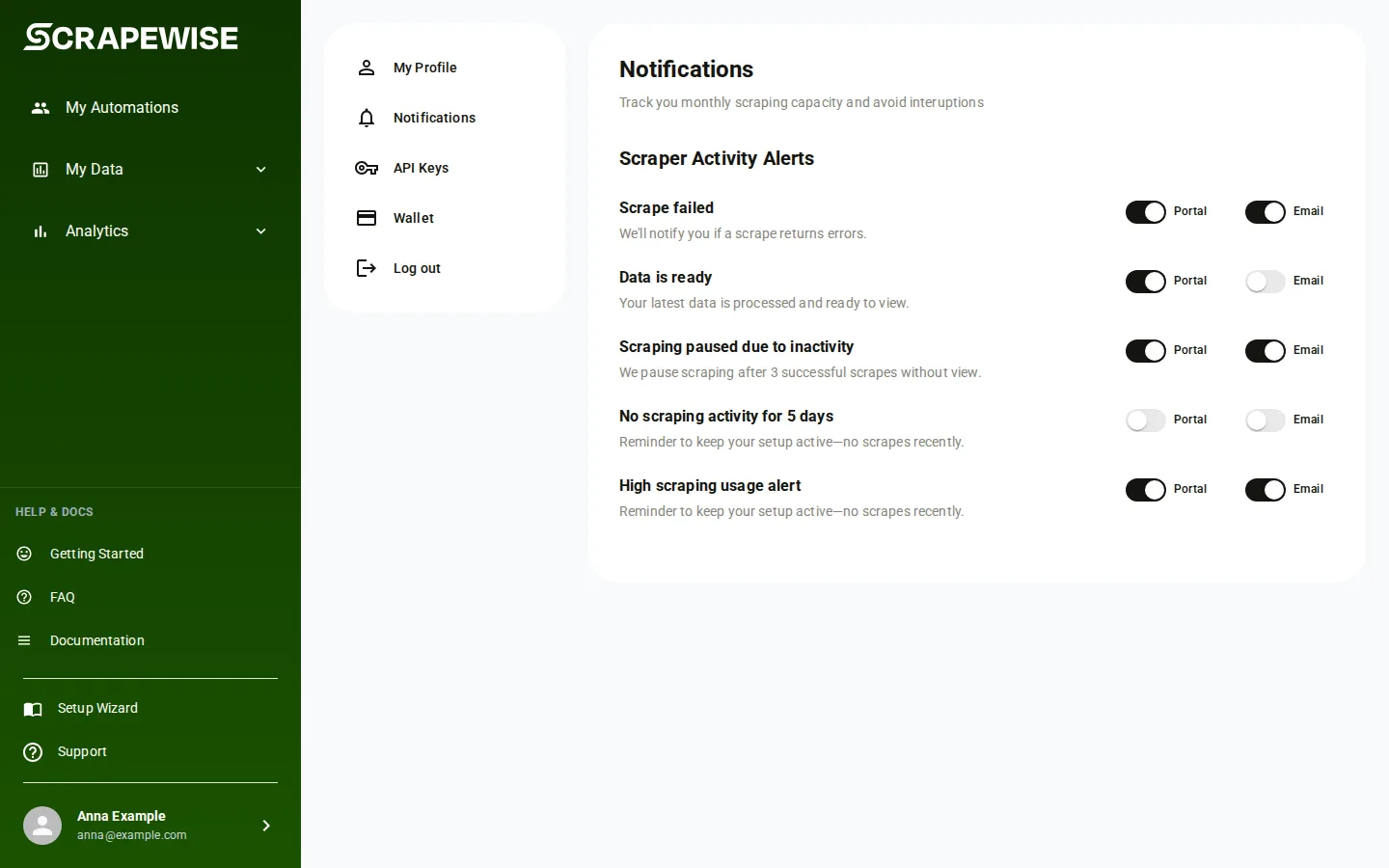
confirmin the box (the box says “Write confirm in the box below to proceed.”), then press Yes, delete account. Press Close if you changed your mind. - Open Notifications to choose what reaches you. Each message has two switches, Portal (a message in the portal) and Email. A switch saves the moment you press it. If it fails, the page says “Failed to update preferences” and puts the switch back.
Note
Delete Account cannot be undone. Export what you need first, see Exports and delivery.
- Use a Read key to read and a Full key to change. Base address
https://portal.scrapewise.ai/api/scraper-api, headerAuthorization: Bearer <key>. - Read your notification choices with a Read key:
GET /api/customer/preferences/notifications. - Change them with a Full key:
PUT /api/customer/preferences/notifications. Send the whole map. It replaces the old one. - Read the small key-value notes saved for your account with a Read key:
GET /api/customer/preferences/additional-info. - Save them with a Full key:
PUT /api/customer/preferences/additional-info. Remove one with a Full key:DELETE /api/customer/preferences/additional-info/{key}. - Read the public feedback board with a Read key:
GET /api/feedback. It lists the bug reports and feature requests of all customers, without names. Filter withcategory,typeandstatus, and addsortByVotes=trueto put the most voted first. - Add your own item with a Full key:
POST /api/feedbackwithtitle(up to 140 characters),description(up to 3,000),categoryandtype(bug or feature request). Vote for an item with a Full key:PUT /api/feedback/{id}/vote. Take your vote back with a Full key:DELETE /api/feedback/{id}/vote. - Read the terms of use with a Read key:
GET /api/customer/user-agreement. The answer is a web page (HTML). - Your profile (
GET /api/customer,PUT /api/customer) and your password are tied to the portal sign-in. They answer only to a portal session, not to a Read key or a Full key.
curl -X PUT "https://portal.scrapewise.ai/api/scraper-api/api/customer/preferences/notifications" \
  -H "Authorization: Bearer $SCRAPEWISE_FULL_KEY" \
  -H "Content-Type: application/json" \
  -d '{ "WALLET_LOW_BALANCE": { "email": false, "portal": true } }'
The names you can use are SCRAPER_NOTIFICATION (messages about your scrapers) and WALLET_LOW_BALANCE (your balance fell below the low-balance line). Each takes email and portal as true or false.
Each notification has the name the system uses. The values are email and portal, each true or false. Read the map first and send back the whole map with your change, so you do not drop the others.
- There is no MCP tool for the profile, the notifications or the password. Do these in the portal tab, or with the API tab and a Full key.
- Your assistant can read your data (Read key) and run your work (Full key) with the tools described on Connect your assistant (MCP). It cannot change your account.
Errors you may see
Questions
Why are there so many notifications?
The page lists every message the system can send you, named as the system names it. Switch Email off for the ones you do not want. The Portal switch controls the message inside the portal.
Is the theme saved on my account?
No. It is saved in this browser. On another browser you start in light.
What happens to my data when I delete my account?
The account is deleted for good and cannot be brought back. Export what you need first.
Everything on this screen
Notifications page:
- The email switch of each notification type: when it is on you get that notification as an e-mail.
- The portal switch of each notification type: when it is on the notification shows inside the portal.
- Update Preferences: on the separate notification preferences page, saves all switches on that page. It says Updating while it saves. The Notifications list in Settings has no such button: its switches save when you press them.
Settings page:
- Write confirm in the box below to proceed.: a safety box before a step that cannot be undone. Type the word confirm as asked, then press the button that wakes up.
Last updated 4 November 2026