Groups, rules and exports · Draft, not listed yet
Price Monitor
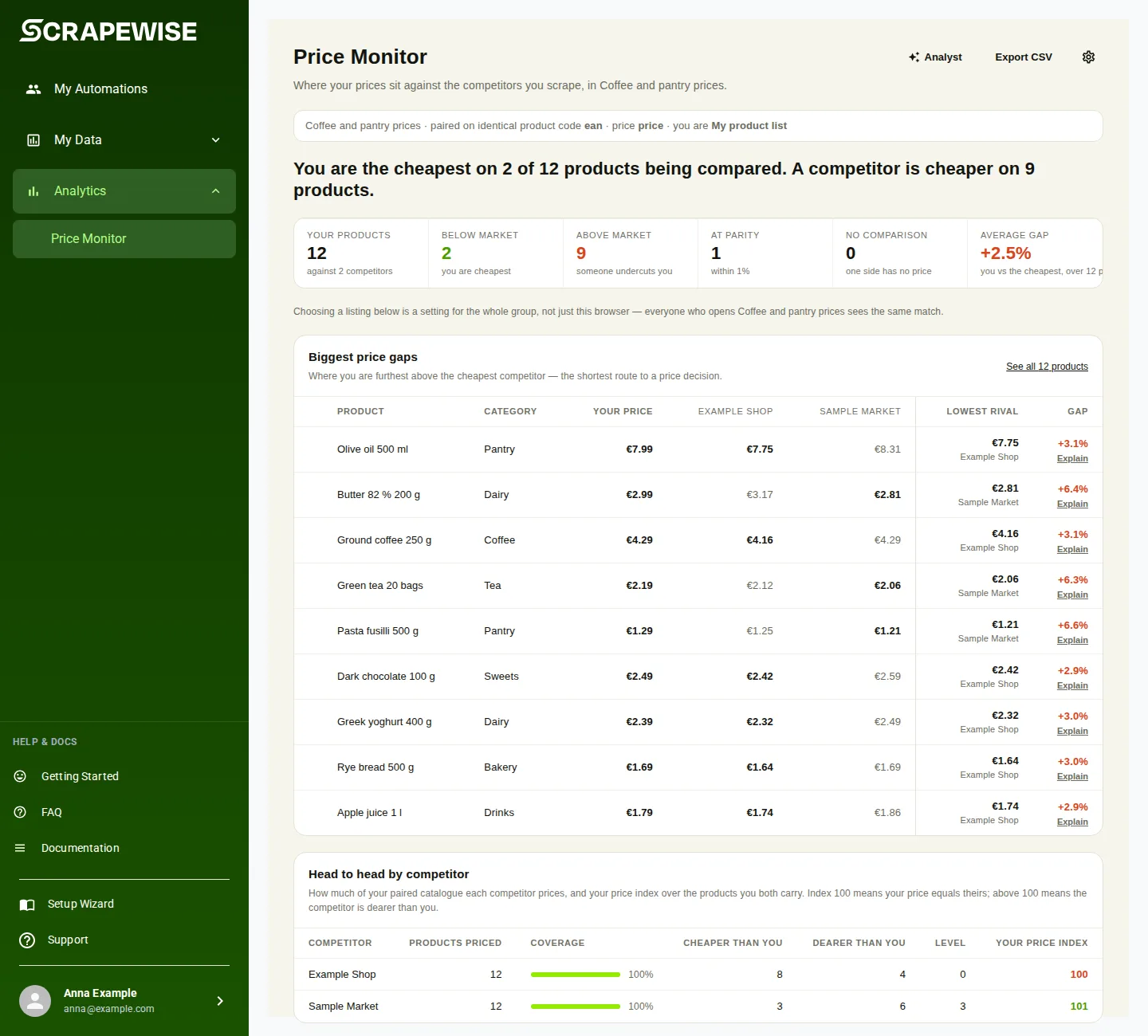
Price Monitor sits under Analytics. It takes one group that holds your own scraper and your competitors’ scrapers, pairs the same products, and shows where you are dearer or cheaper. If the menu entry Analytics is missing in your portal, the page is not switched on for your account yet, and the page says “Price Monitor is not enabled here”.
- Open Analytics in the left menu and pick Price Monitor.
- Pick the Group. The group needs your scraper and at least one competitor scraper with data. If it does not, the page says “No groups to compare yet” or “No scraped data in this group yet” and offers Open My Data.
- Press Comparison settings. Choose Your scraper (the one that is yours), the Price column and the Product column. You can also set Category column, Subcategory column and Campaign sale column, a Reference competitor for all categories, and Show prices in (the currency).
- Press Save for everyone. The settings are saved on the group, so everyone who opens it sees the same prices. Until you save, the page uses its own guesses and shows “Not confirmed”.
- Read Biggest price gaps first. Then read Price index by category, Head to head by competitor and the product table. Each product has a label: Above market, Below market, At parity or No comparison. Use Search product to find one.
- If several of your own listings share one pairing value, press This is my product on the right one. On a competitor row, Compare this product picks the listing to compare.
- Open Diagnostics to see what qualifies the numbers: different currencies in one group, scrapers that ran on different days, or rows that could not be paired.
- Press Analyst to ask a plain question, for example “Where’s my biggest price gap right now?”. The Analyst answers only from your current data and says when it cannot.
- Open a product, a category or a competitor for its detail page with the price history.
Note
The Analyst is a portal feature. There is no API or MCP call for it.
- Use a Full key to change and a Read key to read. Base address
https://portal.scrapewise.ai/api/scraper-api. Send a newIdempotency-Keyheader on every PUT and DELETE. - Save the comparison settings with a Full key:
PUT /api/scraper/group/{id}/price-monitor. The body hasme(the name of your scraper),mode(matchedortitle),key(the column to pair on whenmodeis notmatched),price,productName,category,subcategoryandsalePrice. Anullclears one choice back to the automatic pick. One column cannot be used for two roles. - List the listings you pinned as your own, with a Read key:
GET /api/scraper/group/{id}/price-monitor/picks. - Pin one with a Full key:
PUT /api/scraper/group/{id}/price-monitor/pickwithkey(the pairing value exactly as scraped) andname. Remove it withDELETEon the same route andkeyin the body. - Read the reference competitor per category with a Read key:
GET /api/scraper/group/{id}/price-monitor/anchor-competitor. - Set one with a Full key:
PUTon that route withcategoryandcompetitorLabel. Remove it withDELETEandcategoryin the body. - Read the prices themselves with the normal data routes, see Exports and delivery.
curl -X PUT "https://portal.scrapewise.ai/api/scraper-api/api/scraper/group/[GROUP ID]/price-monitor" \
  -H "Authorization: Bearer $SCRAPEWISE_FULL_KEY" \
  -H "Idempotency-Key: [NEW UUID]" \
  -H "Content-Type: application/json" \
  -d '{ "me": "[YOUR SCRAPER NAME]", "mode": "title", "key": "ean", "price": "price", "productName": "name" }'
Pins and reference competitors are limited to 5,000 each per group.
- Connect your assistant with a Full key to change, or a Read key to look. See Connect your assistant (MCP).
- Ask it to set the comparison:
scrapewise_update_scraper_group_price_monitor(Full). - Ask which listings are pinned:
scrapewise_list_scraper_group_price_monitor_picks(Read). Pin or unpin withscrapewise_update_scraper_group_price_monitor_pickandscrapewise_delete_scraper_group_price_monitor_pick(Full). - Ask for the reference competitors:
scrapewise_get_scraper_group_price_monitor_anchor_competitors(Read). Set or remove one withscrapewise_update_scraper_group_price_monitor_anchor_competitorandscrapewise_delete_scraper_group_price_monitor_anchor_competitor(Full). - Ask for the rows with
scrapewise_get_scraper_data_group_client(Read).
Errors you may see
Questions
Why does it say Not confirmed?
The page guessed which scraper is yours. Open Comparison settings, check it and press Save for everyone.
Does Price Monitor cost anything?
Reading and pairing fetch no pages, so they cost nothing. Only your scrapes cost, as usual.
Is it the same as matching?
No. Matching joins products across scrapers and writes results. Price Monitor reads the pairing you set, or the matcher output with mode matched. See Set up a match.
Everything on this screen
Comparison settings:
- Reference competitor: the competitor a category is compared with.
- Customize individual categories (optional): opens a list where each category gets its own reference competitor. Hide closes the list.
- Matched products: pair products with the result of a match run. The number is how many pairs that gives.
- Identical title: pair products whose titles are exactly the same. The number is how many pairs that gives; 0 means no title is the same.
- Advanced: pair on another column: pick a column, for example a product code, to pair on.
- Back to title and Back to the automatic choice: leave the column you picked.
- Run matching: opens the group so you can run a match and pair the rest of the products.
- Confirm: saves the settings for everyone who opens the group. It reads Applying while it saves.
- Cancel and Close: close the settings or a notice without saving.
- Not confirmed and Check and confirm: the page is still using its own guess. Open the settings and press Confirm.
Table and chart:
- Export CSV: downloads the table you see as a CSV file.
- See all products: jumps to the full product table.
- vs all competitors and vs anchor: show the price index of each category against all competitors together, or against the reference competitor of that category.
- use sale price when active: compares the sale price instead of the normal price when a product is on sale.
- Open a category in detail: opens the category page.
- All products and On campaign: show every product, or only the ones with an active sale. All clears the filter.
- Widen table: gives the table the full width of the page.
- − and +: close or open the details of a row.
- Rows of the product table, the competitor list and each category: press a row to open it. The small tables inside a row list the competitors for that product or category.
- not mine and not this one: tell the page that a listing is not your product, or not the right one to compare. This is saved on the group for everyone.
- You’re cheaper, You’re dearer, Too few pairs and No data: the verdict on a row. Too few pairs means too few products were paired to say.
- Open: opens the detail page of that row.
Analyst and groups:
- Where’s my biggest price gap right now?, Which competitor undercuts me most often? and What changed since last week?: ready-made questions for the Analyst. Press one to ask it.
- Look at another group: switch to another group when this one has no data to compare.
- Try again: loads the page again after an error.
Detail pages (product, category, competitor):
- Explain: sends the name of this category, competitor or product to the Analyst and asks it to explain the numbers.
- ← Back to Price Monitor: returns to the main page.
- Open from Price Monitor: shows when a link does not say how to read the prices. Open the page from Price Monitor instead.
- 7 days, 30 days, 90 days, 6 months, 1 year and All: the time range of the price history.
- Apply: applies a date range you typed.